
CapCut Auto Captions Alternatives: Accuracy, Segmentation, and Style Compared
CapCut's auto captions moved behind the Pro paywall, so switching is now a real question. How CapCut, Descript, and Kapwing differ on the three things that decide caption cleanup time, based on documented behavior and user reports as of October 2026.

CapCut made one-tap, styled auto captions a default part of the short-form workflow. But a familiar tool is not always the best fit for every captioning job, especially when correction speed, segmentation, export control, or multilingual review matters. Hence the search that probably brought you here: if not CapCut captions, then what?
The two usual answers are Descript and Kapwing, and this article compares all three on the caption job specifically — not as overall video editors, where each has a different story. The comparison is built from official product documentation and what you can check yourself in a free session. What it deliberately is not built from is a claimed lab test: raw accuracy numbers quoted without a published method tell you nothing you can act on. What you can act on is the structure below, because caption cost is rarely decided by the words being wrong.
Why accuracy stopped being the deciding factor
On clear, single-language speech, every serious caption engine — CapCut's included — transcribes well enough that the first pass is usable. Vendors claim 95–99% accuracy on clean audio, and for once the marketing is roughly right: for standard spoken English, speech-to-text is a solved-enough problem. The errors that remain concentrate in predictable places: names, niche jargon, accents the engine was not trained on, and overlapping speakers.
That reframes the buying decision. A tool can be "mostly accurate" and still cost you hours — if there is no fast way to navigate between errors, no way to fix a recurring term in one pass, and no stable view that keeps caption-text alignment while you fix the video around it. So before comparing tools, compare what happens after the first pass on your own clips. Three checks cover it.
Check 1: the correction workflow. Take a clip with one name the engine gets wrong and one sentence that runs on. See whether you fix the word in a text list, in a full transcript, or by reopening each caption card; see whether a fix propagates or has to be repeated per segment; see what happens to timing after the text changes.
Check 2: segmentation. Captions can be word-perfect and still feel broken — phrase breaks landing mid-thought, a two-word filler fragment flashing alone on screen, on-screen rhythm fighting the narration. This is a phrase-boundary problem, not a transcription one, and it is the failure mode teams most consistently underestimate. Check resilience after you trim or rearrange the edit, not just at full length.
Check 3: style repeatability. The useful question is not "how many caption styles does this tool ship?" but "can I define one caption treatment for this series and apply it across twenty clips without redoing the work?" A large style library and a reliable style system are different things, and only the second one scales with your output.
Run those three checks on one representative clip and the right tool for your workflow usually becomes obvious. Here is what each of the three looks like through that lens.
CapCut Web: styles to browse, captions now Pro-gated
What CapCut still does well: the caption feature itself is fast, supports 20+ languages for AI caption generation (documented), and sits inside an editor with one of the largest style and template libraries anywhere — an advantage when you want whatever look is currently trending rather than one look of your own. The TikTok-native publishing path around it remains the shortest in the market.
The friction concentrates exactly where the three checks point. Segmentation is edited per segment in a caption list — merge, split, retype — with no global line-length rule, so cleanup is a card-by-card pass. The screenshot below, captured in a session on CapCut Web, shows the shape of the problem in its subtitle list: a two-word filler fragment ("um from uh") sitting as its own caption segment, technically transcribed, rhythmically wrong.
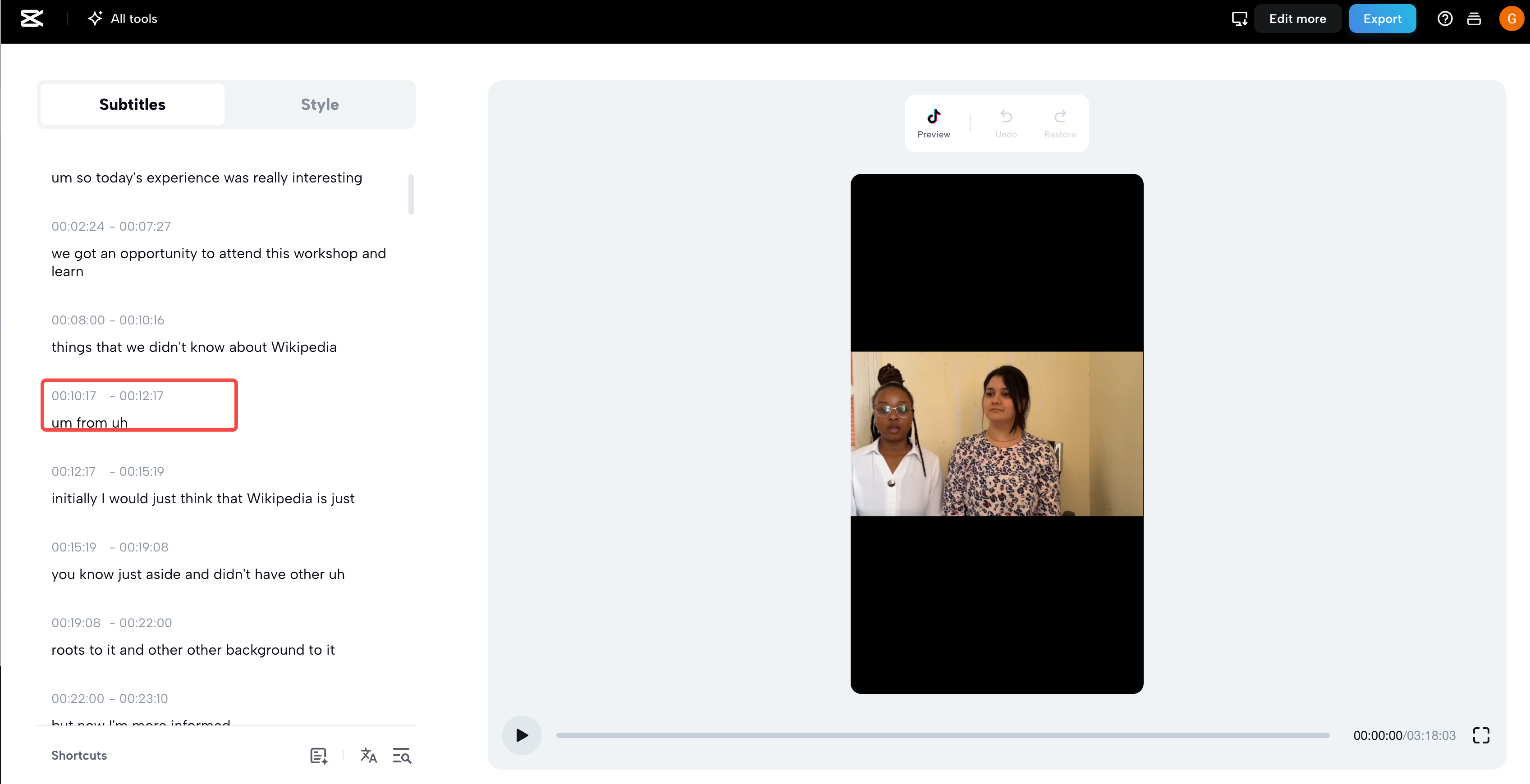
CapCut Web's auto-caption interface, with the subtitle segment list below the player — the highlighted fragment is a segmentation artifact, not a transcription error.
Style repeatability is a per-project discipline: you re-pick and re-tune the treatment each time, because nothing comparable to a brand kit carries a saved caption treatment across projects. And as of October 2026 the feature itself sits inside Pro on CapCut's main apps (availability varies by platform and region), with even some paying users reporting caption instability after edits. None of this makes CapCut wrong for casual use — quick drafts and trend-driven styling are still its home ground — but it is why the search for alternatives has a real basis.
Descript: captions as a byproduct of the transcript
Descript's model inverts the workflow: the transcript is the editing surface, and captions are what you export from it. That design pays off directly on Check 1 — you fix a misheard name by editing text, the way you would fix a typo, and the correction workflow benefits from everything else the transcript gives you: filler-word highlighting, search, and structure. Descript also documents the control the other two lack on Check 2: subtitle export settings include a max-characters-per-line option, and speaker labels can be included in subtitle files (off by default in current exports) (Descript's subtitle export documentation).
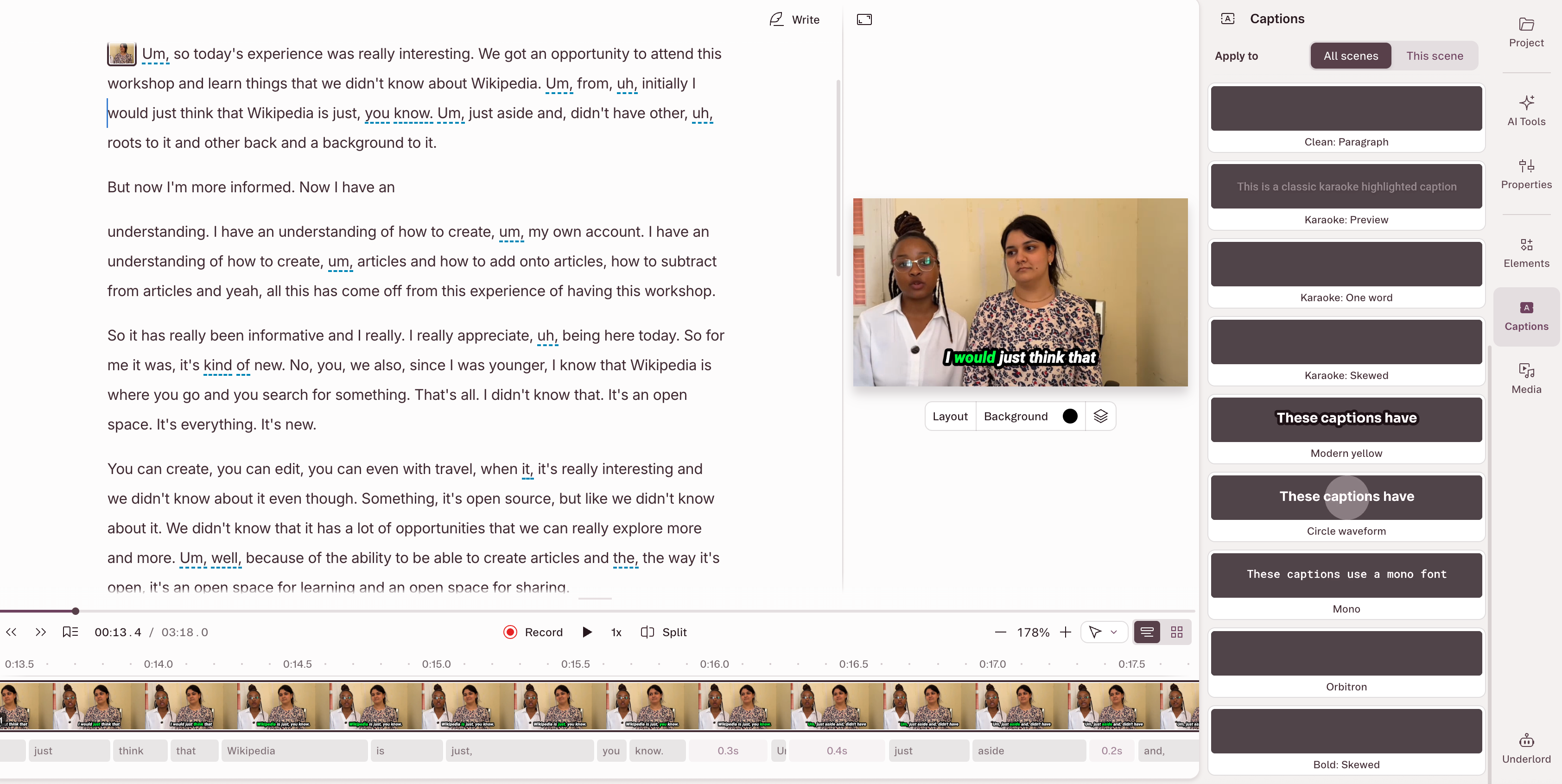
Descript's interface shows the transcript as the editing surface, with subtitle grouping derived from sentence structure rather than set piecewise.
The trade is aesthetic range. Descript's caption styling is clean and readable — built for podcasts, interviews, and talking-head formats — but creators whose channel identity depends on aggressive short-form caption styling (word-by-word pops, color emphasis, kinetic placement) will find fewer native options and more workaround. For a deeper look at where Descript's model wins and where it runs out, see our Descript alternatives analysis.
Kapwing: style control in the browser, at a credit price
Kapwing takes the opposite bet from Descript: maximum surface area for styling and timing control, in the browser. Auto-subtitles generate from speech (consumption is metered in credits on current plans), segments get individually editable timing, and the subtitle settings panel — shown below — exposes a chars-per-subtitle control that directly governs Check 2, plus preset styles with font, color, and placement you can rebuild to a brand spec rather than browse.
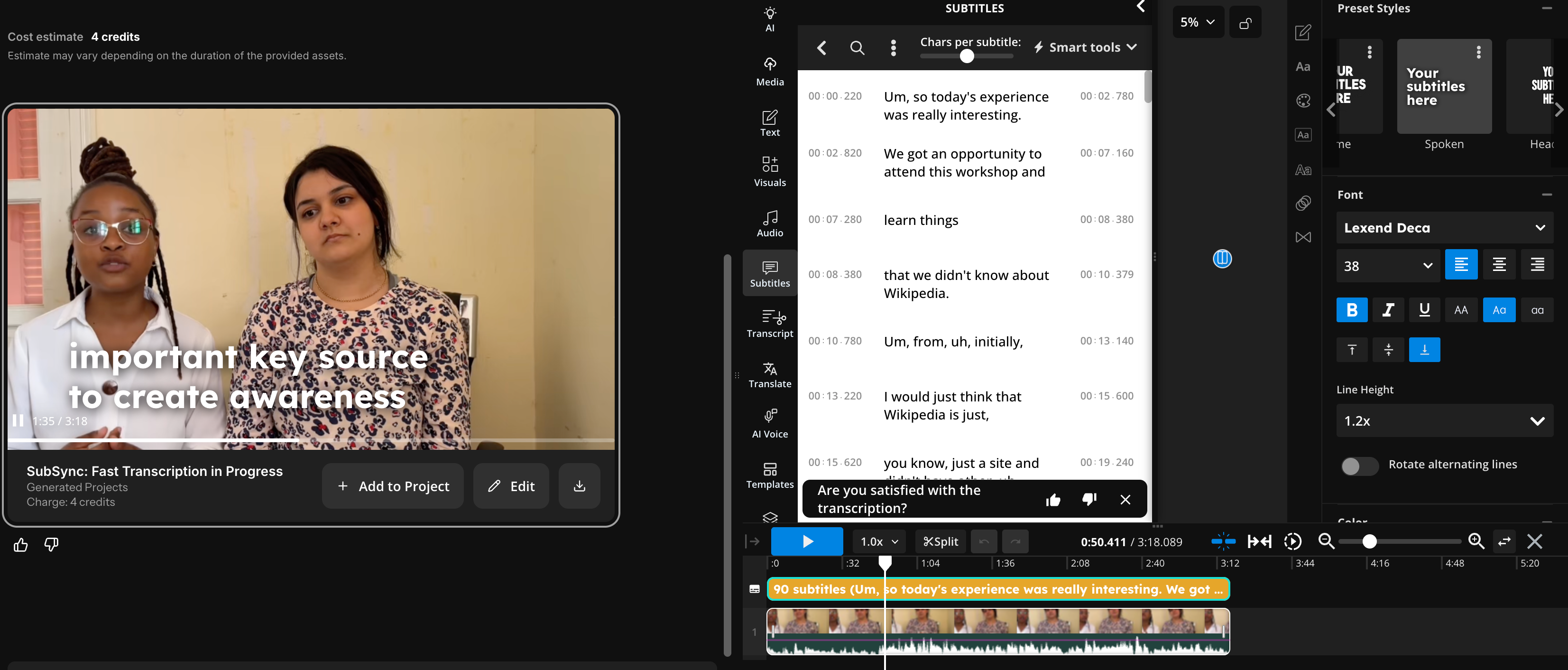
Kapwing's subtitle settings: preset styles, font controls, and a chars-per-subtitle slider that sets line length globally rather than per segment.
Export goes to burn-in, SRT, or VTT, and the editing loop is fully browser-based, which suits teams and reviewers. The costs: the free tier exports watermarked, auto-subtitling draws from a credit balance, and segmentation defaults still produce occasional orphan fragments — but the control surfaces to fix them are the most exposed of the three, which is what Check 1 and Check 2 reward.
The comparison, dimension by dimension
Assembled from documented capabilities and public user reports, October 2026. Feature availability shifts with updates — verify against your own clips before committing.
| Dimension | CapCut Web | Descript | Kapwing |
|---|---|---|---|
| Correction surface | Caption cards, edited per segment | Full transcript; edits flow to captions | Subtitle list, per-segment editing |
| Segmentation control | Manual merge/split per segment | Sentence-derived grouping; max characters per line on export | Chars-per-subtitle setting; per-segment timing |
| Speaker labels in export | Not documented | Yes — optional, off by default | Not documented |
| Style system | Large library, browsed per project | Smaller, cleaner set | Build-your-own presets with full control |
| Style repeatability | Re-picked each project | Reused via project/template workflow | Style settings rebuilt to spec, re-appliable |
| Export formats | Burn-in, SRT | Burn-in, SRT, VTT, transcript | Burn-in, SRT, VTT |
| Free-tier posture | Core editor free; auto captions now Pro-gated | Free tier with limited transcription hours | Free exports watermarked; auto-subtitles cost credits |
| Best for | Trend-driven shorts, TikTok-native pipeline | Podcasts, interviews, transcript-first editing | Teams wanting explicit visual control |
Read against the three checks: Descript wins Check 1 by design, Kapwing wins Check 2's control exposure and Check 3 for teams with a defined brand spec, and CapCut wins on trend variety and pipeline integration — if you are paying for Pro and your caption edits stay shallow.
Four workflow paths, and where the fourth one goes
The tool choice is downstream of the workflow, which is why a feature table alone never settles it. Our caption workflow selection guide works through the decision in full; the short version is four paths.
Template-first — when the bottleneck is a first draft with a current look, not fine timing. CapCut itself fits here for casual use; alternatives trade some style variety for better segmentation or export options.
Transcript-first — when videos are driven by speech structure: podcasts, interviews, explainers. Descript is the clearest example; correction and structural cleanup are native, stylized aesthetics take extra steps.
NLE-native — when you already finish inside Premiere, Resolve, or Final Cut and captions are one stage among color, audio, and deliverables. Maximum editorial control, slower time-to-output, captions that can feel bolted on.
Pipeline-first — when the real job is not captioning one clip but turning one long source into multiple platform-ready Shorts with style, timing, and structure held consistent across the batch. At that point captions stop being an overlay feature and become structural data: what was said, where the beats land, how styling carries across outputs.
That fourth path is where Sparki's AI caption workflow sits — and since Sparki is the product we build, treat this as a vendor describing its own approach. Sparki transcribes, syncs every line to the picture, offers 100+ caption style presets with AI style-to-content matching, and lets corrections happen without breaking timing, with burn-in or SRT export. The point is not the style count; it is that style selection, segmentation, and multi-clip output are handled inside one pipeline instead of being re-decided per clip — the exact manual residue the three checks above are designed to expose. For the broader question of when captioning is even worth pulling out of your current editor, our comparison of YouTube-native captions vs manual cleanup covers the other end of the decision.
If your team spends more time fixing captions than benefiting from them, the move is not another template library — it is a workflow where the checks above stop being your job. Run one representative clip through whichever path fits, and the answer will be obvious before the second clip.
Sources
- CapCut Web: AI caption generation with 20+ languages documented. (CapCut)
- CapCut: subtitle translation marketed for 100+ languages (translation, not speech-to-text). (CapCut)
- CapCut plan comparison: feature availability varies by region/platform. (CapCut)
- Descript Help Center: subtitle export options — SRT/VTT, max characters per line, optional speaker labels. (Descript subtitle export documentation)
- Kapwing: auto-subtitle generation, editable timing and styles, SRT/VTT export; auto-subtitling metered in credits on current plans. (Kapwing, pricing)
https://sparki.io/blog/capcut-auto-captions-alternatives